It's Monday morning. Coffee's still hot. You haven't even opened your actual to-do list yet. Then Slack lights up:
"Hey, I can't log in. Can you help?"
And there goes your morning.
The Ticket That Never Ends
If you've worked IT helpdesk for more than a week, you know this ticket. It's the most common request you'll get. And it's never just "I can't log in." It's actually:
- Is the account locked?
- Is the password expired?
- Did they get suspended for some reason?
- Is MFA the problem?
- Are they even typing the right email?
- Did they try 47 wrong passwords and trigger a lockout?
To answer any of these, you need to investigate. And that means logging into the Okta admin console and clicking. A lot.
The Old Way (We All Know It Too Well)
Here's what a typical "I can't log in" investigation looks like:
-
Open Okta Admin Console - VPN in if you're remote. Find the bookmark. Wait for it to load.
-
Search for the user - Type their email. Click their profile. Wait for it to load.
-
Check account status - Is it ACTIVE? LOCKED_OUT? SUSPENDED? Scroll around to find it.
-
Check MFA enrollment - Click over to the MFA tab. Are they enrolled? What factors do they have?
-
Check recent activity - Open the system logs. Filter by this user. Look for failed login attempts. Try to decipher what happened.
-
Piece it together - Now mentally combine all of this into an answer.
Time elapsed: 8-10 minutes.
And that's if you're fast. If the user provided the wrong email, or you need to check multiple things, double it.
Meanwhile, the user is stuck. Probably late for a meeting. Definitely frustrated.
The New Way: One Command, Full Diagnosis
Here's how it works with {P}eelOps's Login Troubleshooter command:
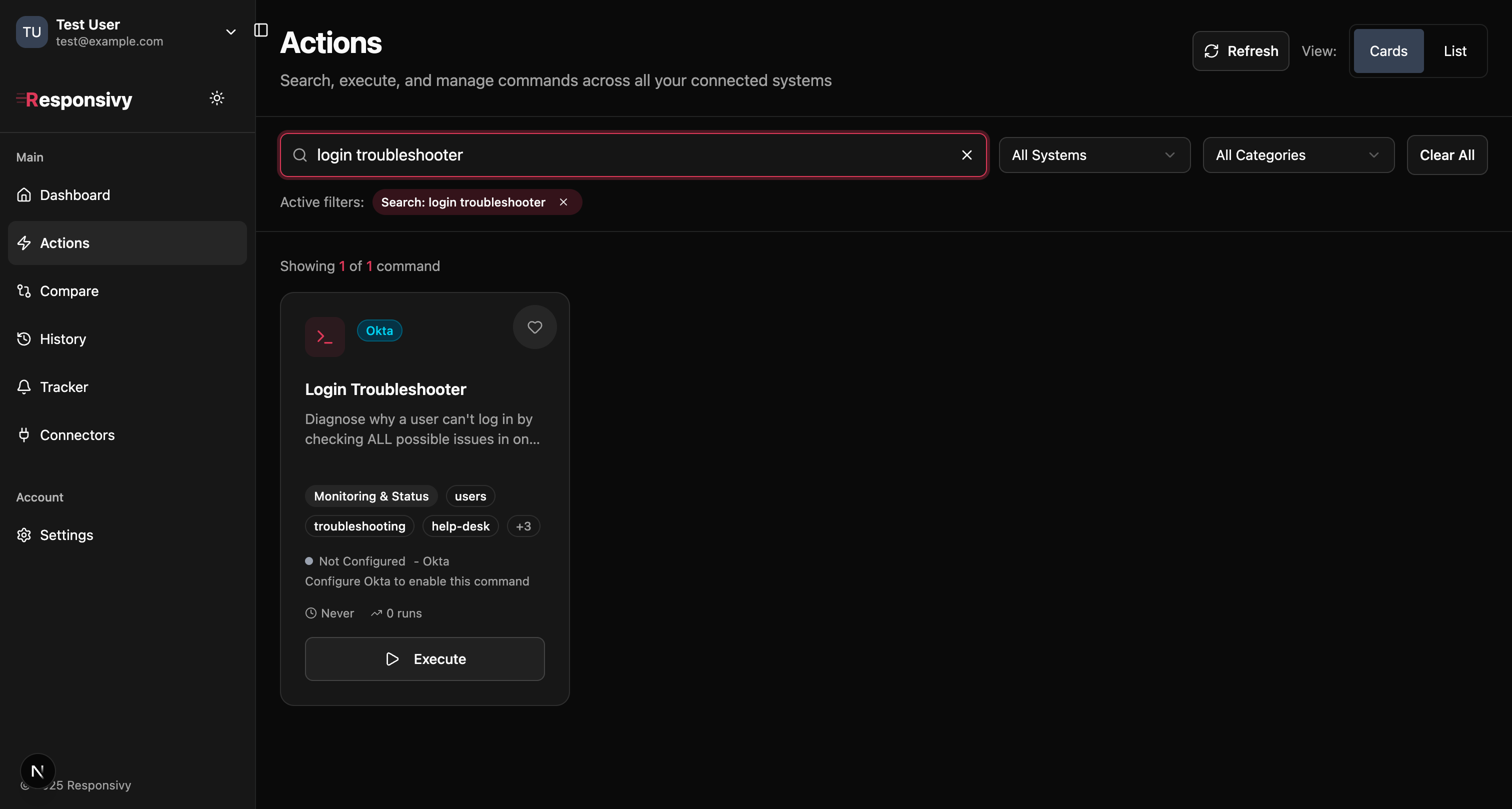 Login Troubleshooter command card in '{P}'eelOps
Just search for "Login Troubleshooter", click Execute, and enter the user's email:
 Login Troubleshooter execution form
Time elapsed: 30 seconds.
That's it. One command. Instant answers.
What You Actually Get Back
The Login Troubleshooter doesn't just tell you yes or no. It gives you everything you need to fix the problem:
Immediate Diagnosis
{
  "canLogin": false,
  "diagnosis": "Account is locked out",
  "recommendedAction": "Unlock the user account in Okta Admin Console or wait for auto-unlock"
}
No guessing. No clicking around. You know exactly what's wrong and what to do.
Severity-Rated Issues
Every issue gets a severity level so you know what to tackle first:
| Severity | Example Issues |
|---|---|
| CRITICAL | Account locked, suspended, or deprovisioned |
| HIGH | Password expired, activation pending |
| MEDIUM | No MFA enrolled, in recovery mode, recent failed logins |
| LOW | Never logged in before |
Recent Failed Login Attempts
See exactly what happened in the last 24 hours:
{
  "recentFailedAttempts": [
    {
      "timestamp": "2025-11-29T08:45:12Z",
      "reason": "INVALID_CREDENTIALS",
      "ipAddress": "192.168.1.45",
      "browser": "Chrome",
      "os": "Windows 10",
      "location": "New York, US"
    }
  ]
}
Is it a wrong password? Is someone trying to brute-force from a weird location? You'll know immediately.
MFA Status
{
  "mfaStatus": {
    "hasActiveMfa": true,
    "factorCount": 2,
    "activeFactors": ["push", "sms"]
  }
}
If MFA enrollment is the issue, you'll see it right away.
Real Scenarios, Real Time Savings
Scenario 1: The Locked Account
User says: "I can't log in, it just says invalid password"
Old way: Log into Okta, find user, check status, check logs, see 5 failed attempts, realize they're locked out. 8 minutes.
New way: Run Login Troubleshooter. See CRITICAL: Account Locked. 30 seconds.
Scenario 2: The Forgotten Activation
User says: "I'm new, I can't access anything"
Old way: Find user, realize they're in PROVISIONED status, check if activation email was sent, resend it. 10 minutes of confusion.
New way: Run Login Troubleshooter. See HIGH: Activation Pending - User has not completed the activation process. 30 seconds.
Scenario 3: The MFA Mystery
User says: "It keeps asking for a code but I don't have the app anymore"
Old way: Check MFA tab, see they have an old factor, figure out how to reset it. 5-7 minutes.
New way: Run Login Troubleshooter. See MFA status with all enrolled factors, immediately know what needs to be reset. 30 seconds.
The Math
Let's be conservative:
- Average "I can't log in" tickets per week: 10
- Time saved per ticket: 8 minutes
- Weekly time saved: 80 minutes
- Monthly time saved: Over 5 hours
That's 5 hours of clicking, scrolling, and tab-switching you get back. Every month.
What could you do with 5 extra hours?
Works From Anywhere
The best part? You don't need to be at your desk.
On your phone during lunch? Run the command.
Working from home without VPN? Run the command.
At your kid's soccer game when someone pings you "urgent"? (We've all been there.) Run the command. Answer in 30 seconds. Go back to watching the game.
One interface. Same results. No VPN gymnastics. No laptop required.
Try It On Your Next Ticket
Next time someone pings you with "I can't log in," don't open the Okta admin console.
- Open {P}eelOps
- Run the Login Troubleshooter command
- Enter their email
- Get instant answers
Your coffee will still be hot when you're done.
Get Started
Connect your Okta workspace to {P}eelOps and the Login Troubleshooter command is ready to use. No configuration needed. No complex setup.
Just fast answers to the question you hear a hundred times a week.
Because "I can't log in" shouldn't take 10 minutes to solve.
Enjoyed this post?
Subscribe to get new posts and product updates delivered to your inbox.